
Analytics
Team status
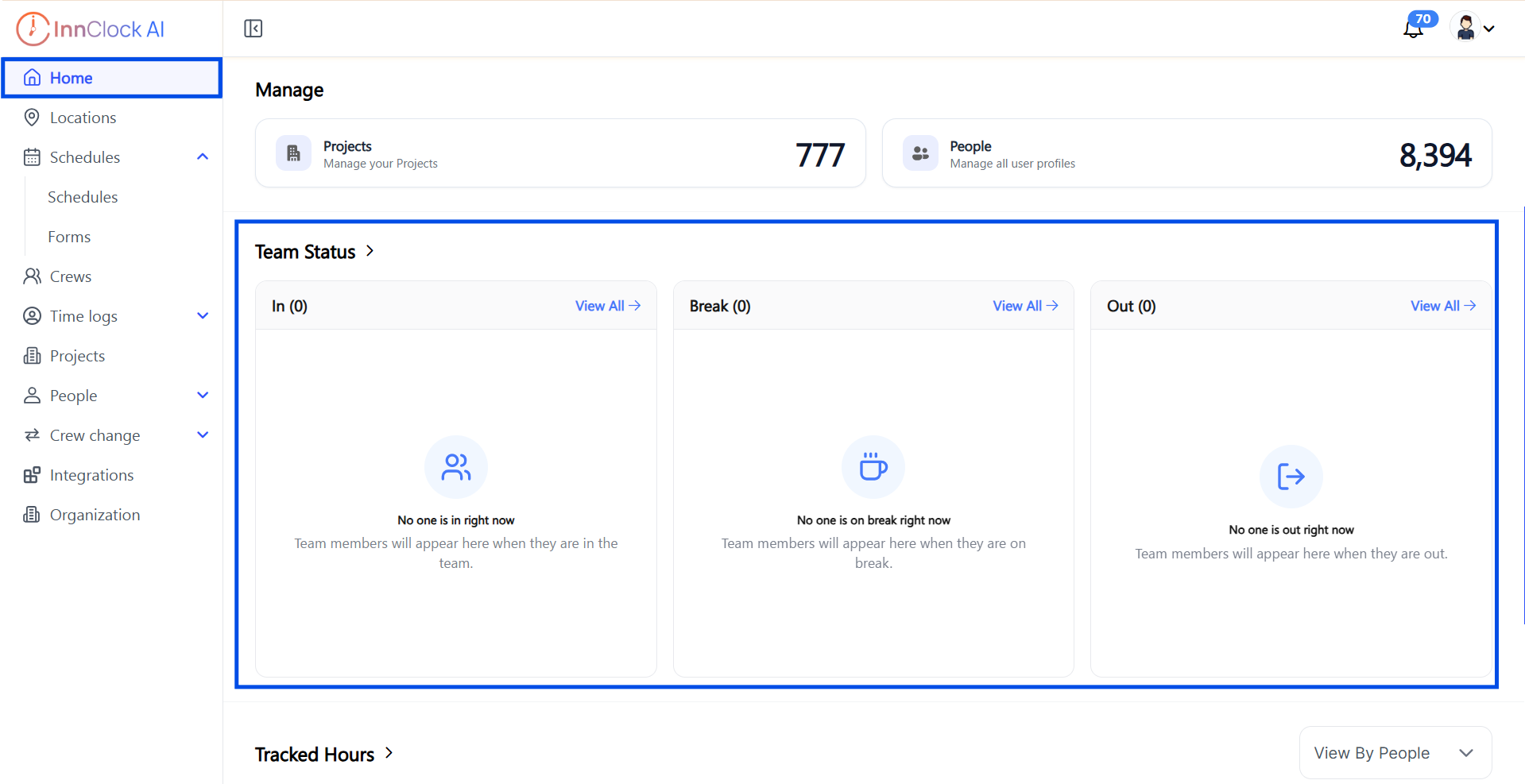
Crew managers and admins can see who is working, on break or logged off with Team Status on the Home screen. A manager can end a member's shift from the three dots beside their name.
Track hours
Open Tracked Hours from the Home screen. It has two views:
- By Days: review one person's hours and the way they verified their identity across a week.
- By People: compare up to 10 people's hours and verification methods on a single date.
You can pick people across projects and crews.
View time logs
Open Time logs in the sidebar on the web, or the Time Logs card on mobile. There are two views:
- My logs: your own entries.
- Team logs: entries for the people you manage.
Pick the dates you want to look at. The current week, up to today, is selected automatically.
Scheduled hours
Both views now show Scheduled hours, so you can compare the hours people were planned to work with the hours they actually worked.
In My logs
The Overview card shows four figures for the dates you selected: Scheduled Hours, Total Work, Total Break and Overtime.
In Team logs
- Web: the table has a Scheduled hours column next to Total time for each person.
- Mobile: each person's row reads Scheduled: … | Worked: ….
How scheduled hours are worked out
- It is the planned work time from the person's schedule, over the dates you selected: shift length minus the planned break.
- Only working days count. Days off and holidays marked in the schedule calendar add nothing.
- Per-day schedules are respected. For a Weekly Flexible by day schedule, each day uses that day's own hours.
- The right schedule is used for each day. If someone's schedule changed during the period, each day is counted under the schedule they had on that day.
- No schedule, no planned hours. People on the Default schedule show 0 (or -- where no schedule is available).
- It is a plan, not a record. Scheduled hours do not change when someone clocks in late or works extra. Compare them with Total Work and Overtime for the full picture.
Scheduled hours are also included in the time log Export.
Edit time logs
- Edit time: change the timestamps for a log group.
- Split log: divide a group so you can edit part of it.
- Clamp time: round start and end times to work hours, if your schedule allows it.
- Transfer log: move a group to another crew, in the same or a different project.
- Delete: permanently removes a log.
Managers can add new logs with New.
Updated about 1 month ago