
Distance UOM Configuration
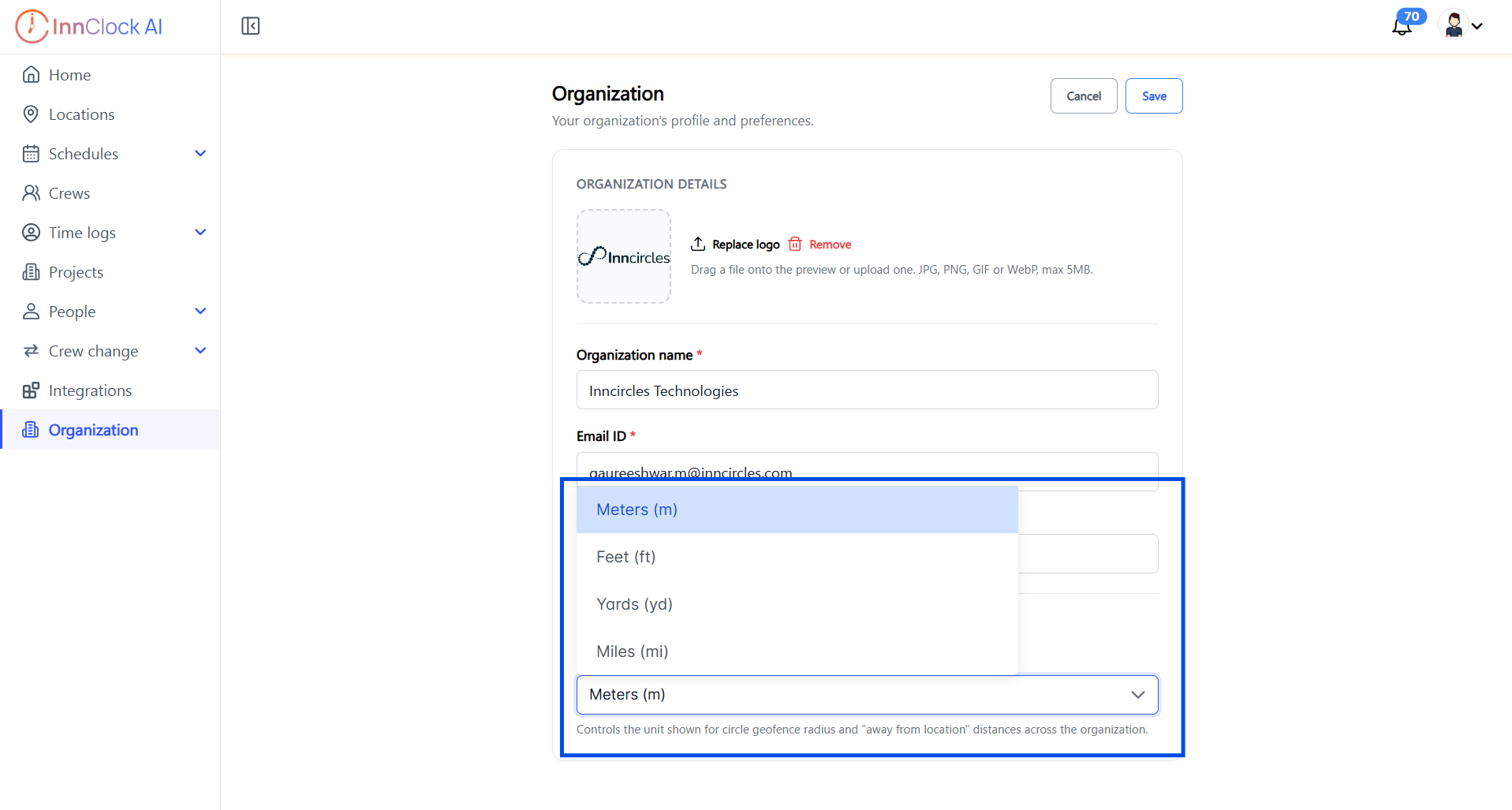
Admins choose one distance unit for the whole organisation: Meters (metric), or Feet, Yards or Miles (imperial). The unit controls how circle geofence radii and "away from location" distances are shown.
Change the distance unit
-
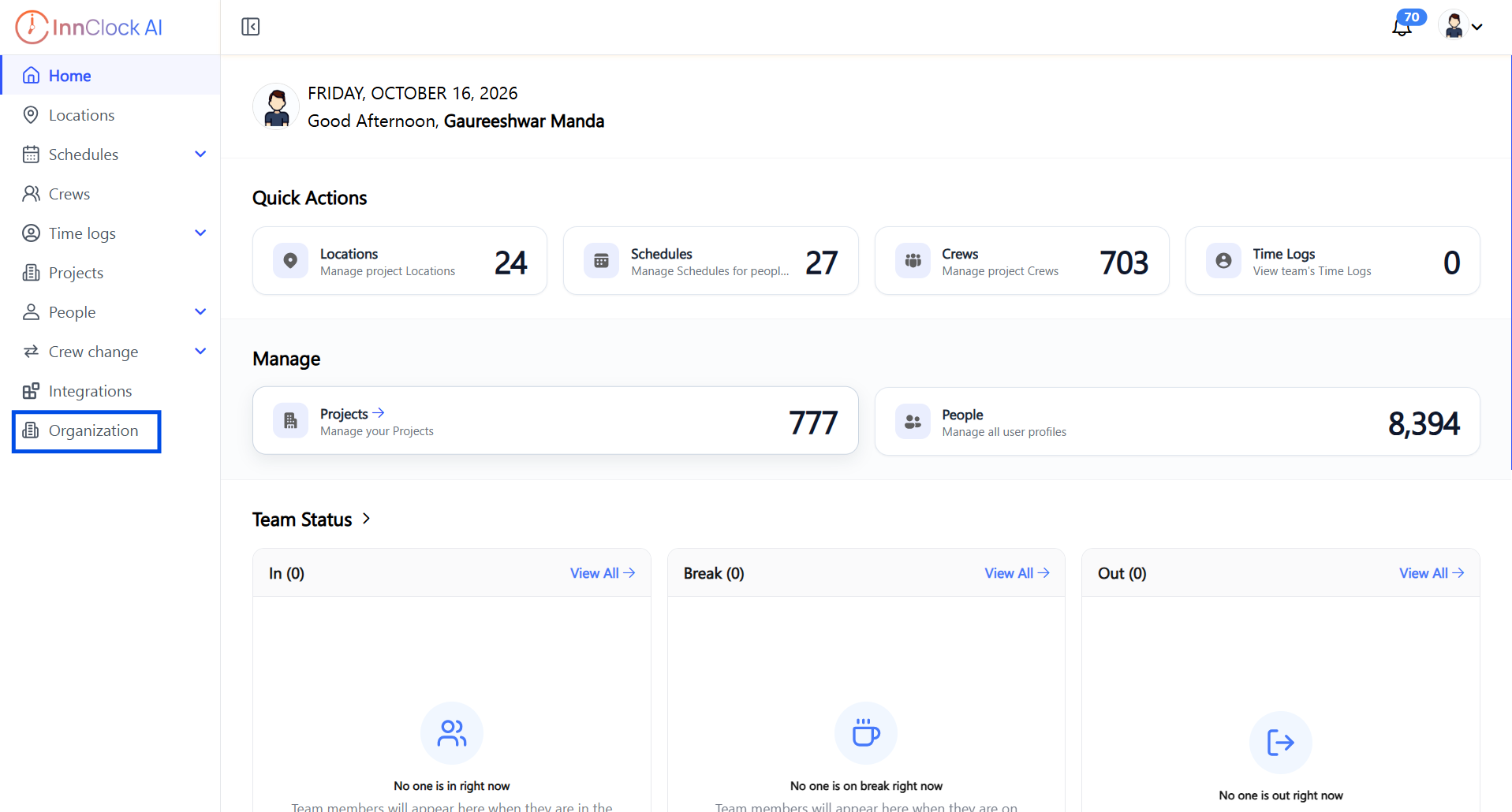
Select Organization in the left menu.
-
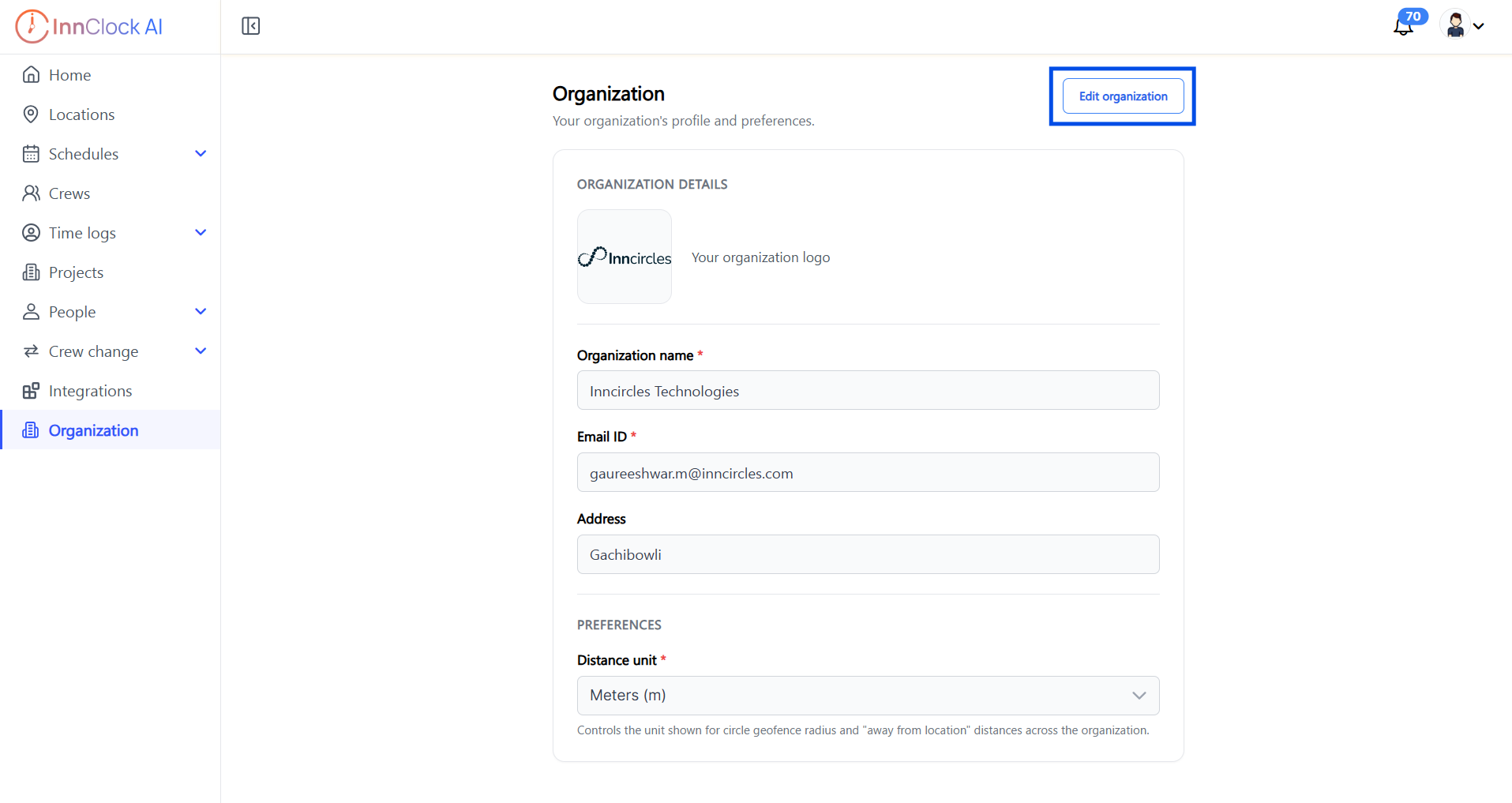
Select Edit organization at the top right.
-
Open the Distance Unit dropdown and choose a unit.
-
Select Save, or Cancel to leave without changes.
Available units
| Option | System | Default radius for a new location |
|---|---|---|
| Meters (m) | Metric (default) | 250 m |
| Feet (ft) | Imperial | 800 ft |
| Yards (yd) | Imperial | 275 yd |
| Miles (mi) | Imperial | 0.15 mi |
What changes when you switch
- Radius field: in Add Location and Edit Location, the unit beside the Radius box and its allowed range follow the selected unit.
- Location cards: the radius on each circle location, for example 2000 m, is shown in the selected unit.
- Away from location: distances that show how far someone is from a location use the selected unit.
Note: Switching units does not change any geofence. Radius values are converted for display and rounded to 2 decimal places. For example, a 250 m circle reads about 820.21 ft after you switch to Feet, but the geofence stays the same size.
Updated about 1 month ago
Did this page help you?